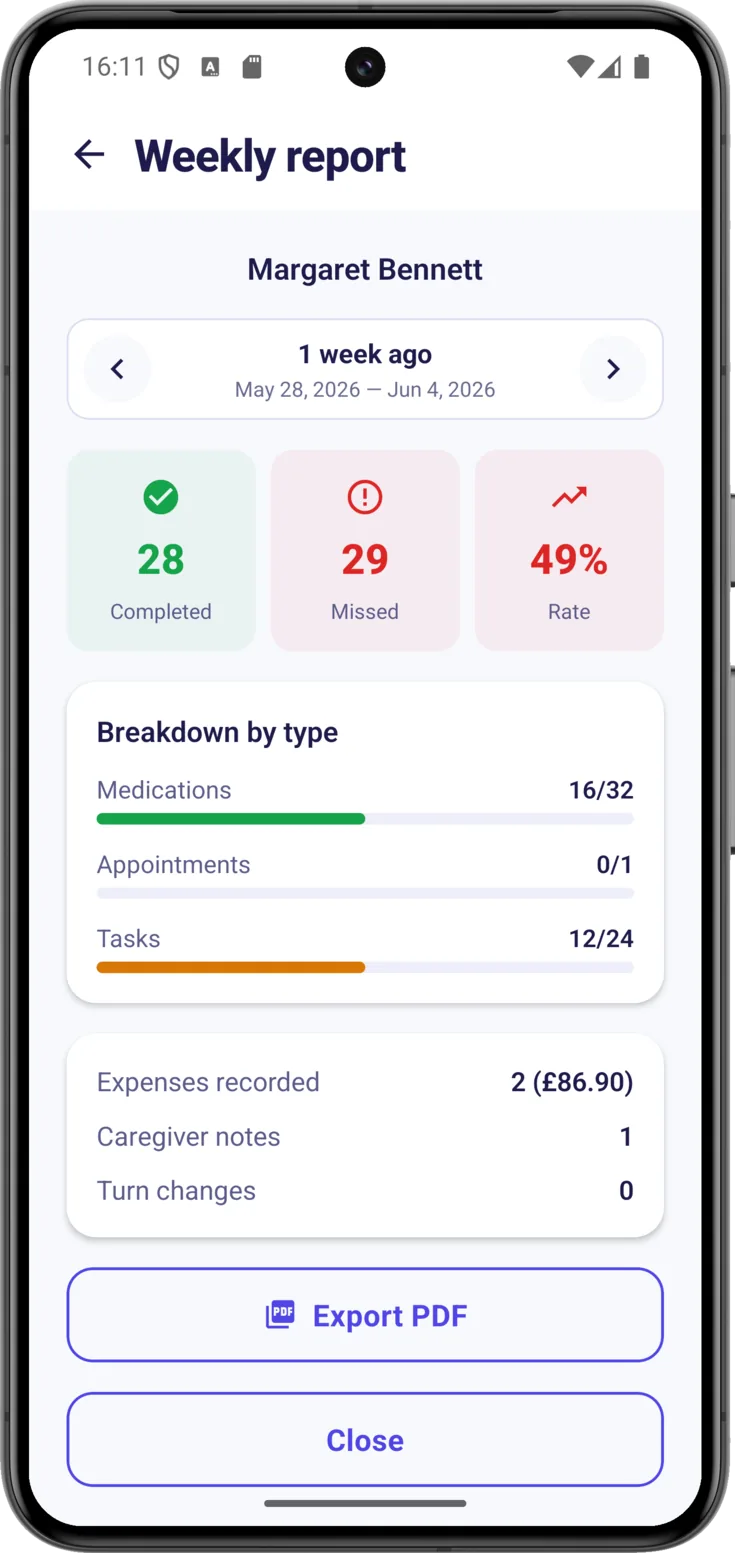
When several people share the caring, it is easy to lose the overall picture: one day your attention is on a pill, the next on an appointment, and it becomes hard to see how the whole week has gone. The Weekly report gathers the last seven days —routines completed, expenses, notes and turn changes— without you having to add anything up.
It is useful above all for two things: getting a quick sense of how things are going without looking through screen after screen, and showing it to someone outside —a relative who lives far away, the doctor— so that they understand in a minute how the week went.
How to open it
Open the report
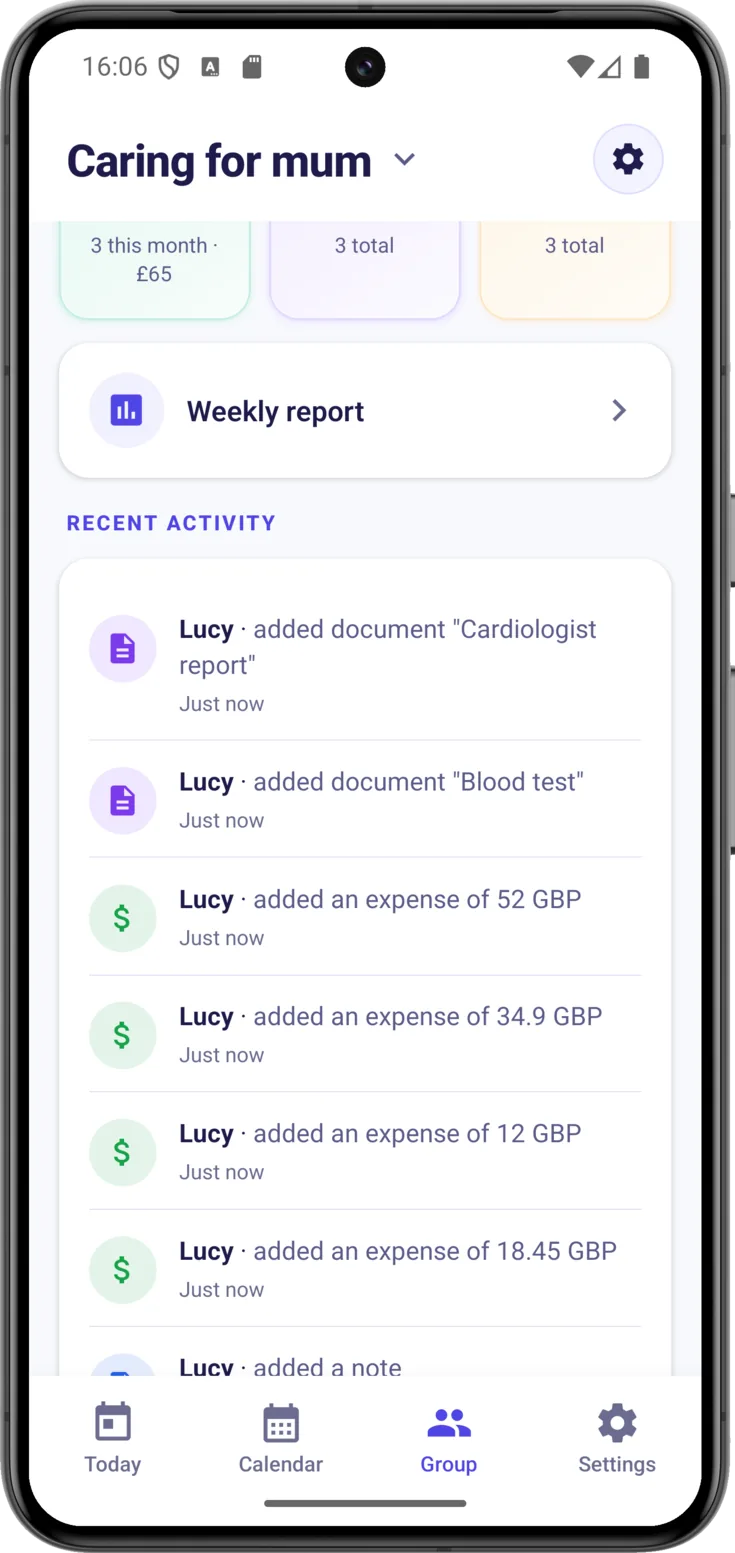
Go into Group, the button at the bottom, and just above «Recent activity» tap «Weekly report» . There is nothing for you to prepare: CarePilot pulls the week’s data together in a moment.
What it shows
What it shows you at a glance
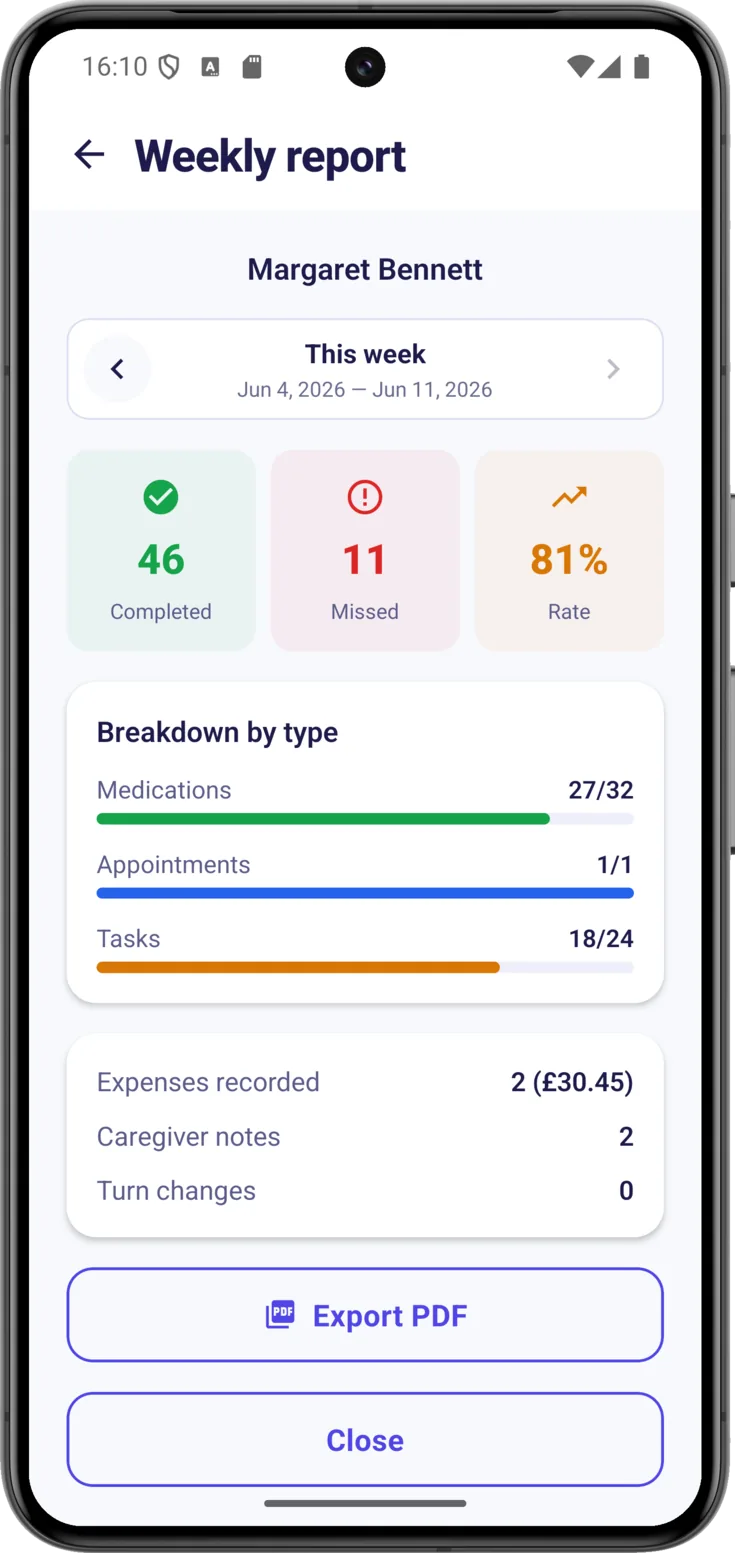
Look first at the «Rate», the third of the figures at the top: it is the quickest way to know whether the week has gone well, because it sums up in a single percentage what «Completed» and «Missed» are telling you. Then move down to the «Breakdown by type», which splits that completion between «Medications», «Appointments» and «Tasks», and that is where you see what is slipping, if anything is. Bear in mind that the last block is no longer about completion, but about what was written down that week: «Expenses recorded» with its total, «Caregiver notes» and «Turn changes».
If a padlock appears instead of the figures
This is how it looks when it is locked
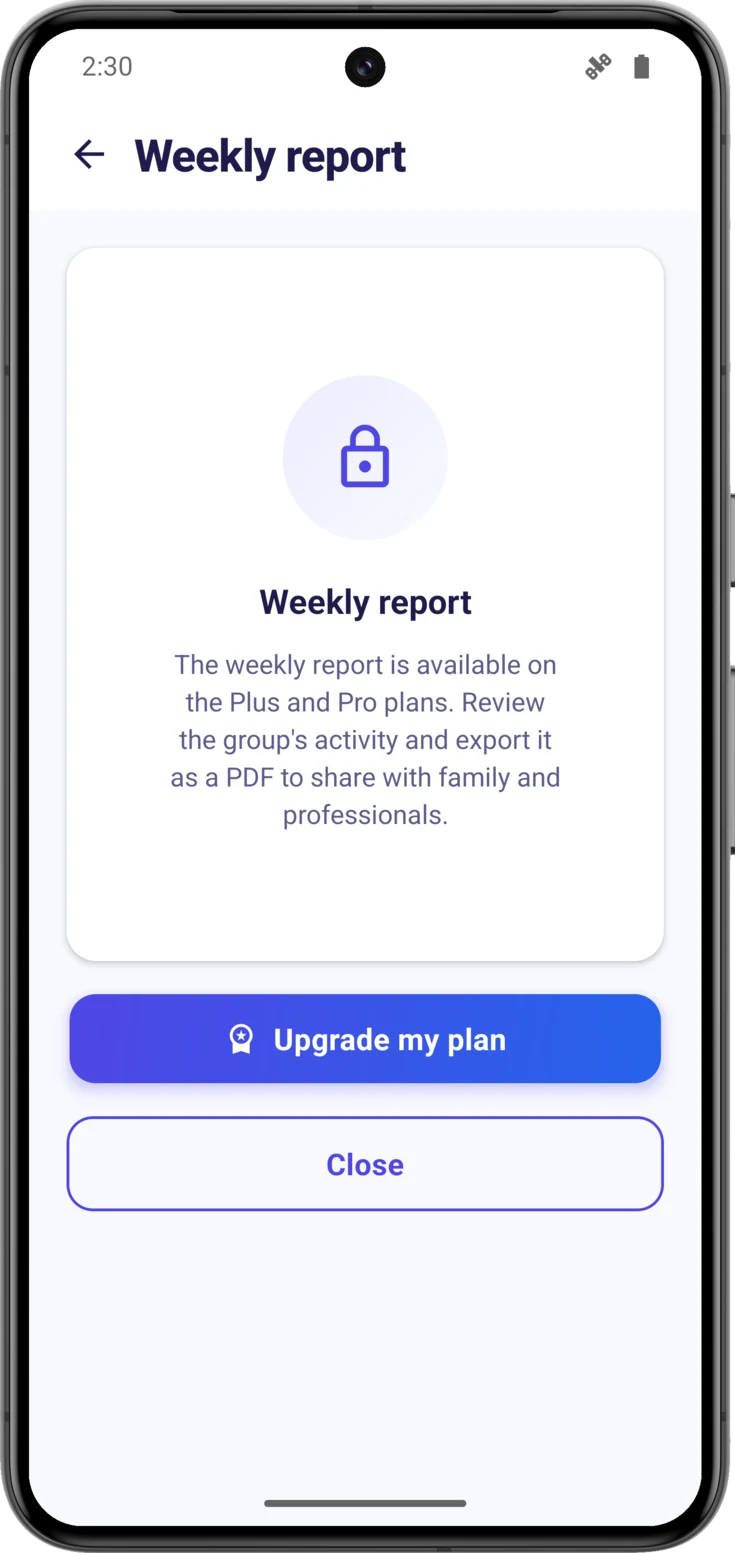
Instead of the figures, a padlock with the explanation, the «Upgrade my plan» button —which only appears if you are the one organizing the group— and a «Close».
If the plans screen opens on top as soon as you go in, that is the app taking you to the comparison: close it and you will find this screen underneath.
Moving between weeks
It helps to know how it counts the weeks, because they are not calendar weeks: they are seven-day windows counted backwards from today. «This week» runs from seven days ago until today, so do not go looking for Monday or Sunday as the dividing line, because there isn’t one.
Look at earlier weeks
Go back with and return towards the present with : the title changes from «This week» to «N weeks ago», and below it you always have the exact dates of the window you are looking at. On the current week, the arrow on the right appears greyed out, because there is nothing ahead to show you.
Saving it as a PDF
Take the report away as a PDF
«Export PDF» turns the week into a clean document that you can print or share. It is included in both Plus and Pro: if you can see the report, you can export it.
When you tap it, your phone’s own share menu opens, with the title «Save weekly report»: from there you send it by WhatsApp or email, or save it on the phone.
The automatic summary every Monday
CarePilot can send a notification every Monday with a summary of the week that is ending. That notification goes to the group’s organizer; everyone else can open the report whenever they like.
Turn it on or off
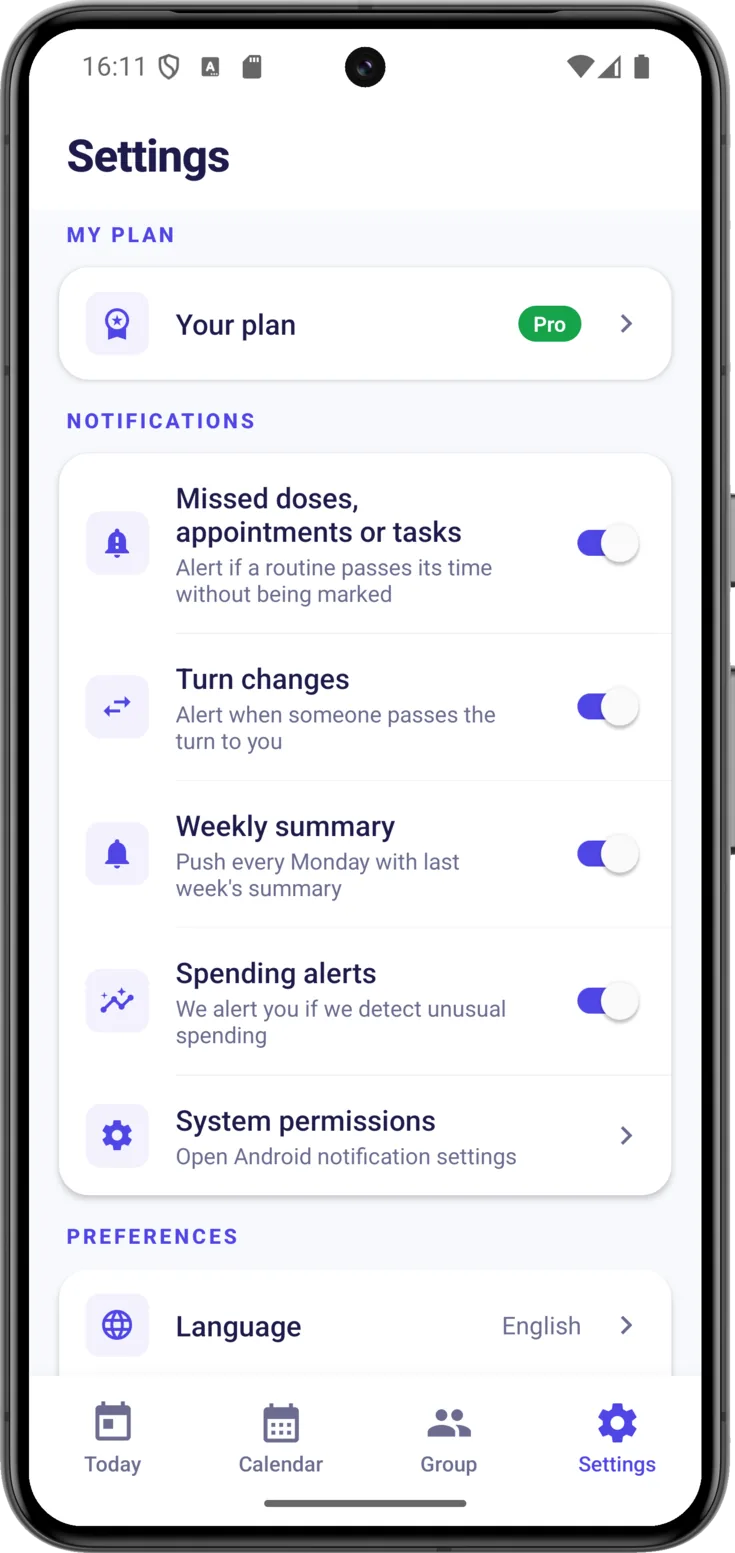
In Settings → Notifications → «Weekly summary» . This switch only appears in the Settings of someone who organizes a group, because it isn’t sent to anyone else. And so as not to bother you with empty notifications, it is only sent if there was activity that week.
It also depends on the plan: in a group on Free you will see it with a padlock and «Available on the Plus and Pro plans», and tapping it opens the plans screen instead of switching it on.