
Documents is the filing cabinet of the care: medical reports, lab results, prescriptions… everything that at home ends up loose or lost on exactly the day it is needed. There are two ways of putting things in, scanning them with the camera or writing them out by hand, and everything is stored encrypted end-to-end: only the members of your group can open it, not even we can.
The document list
You get there from Group, the button at the bottom, by going into «Documents».
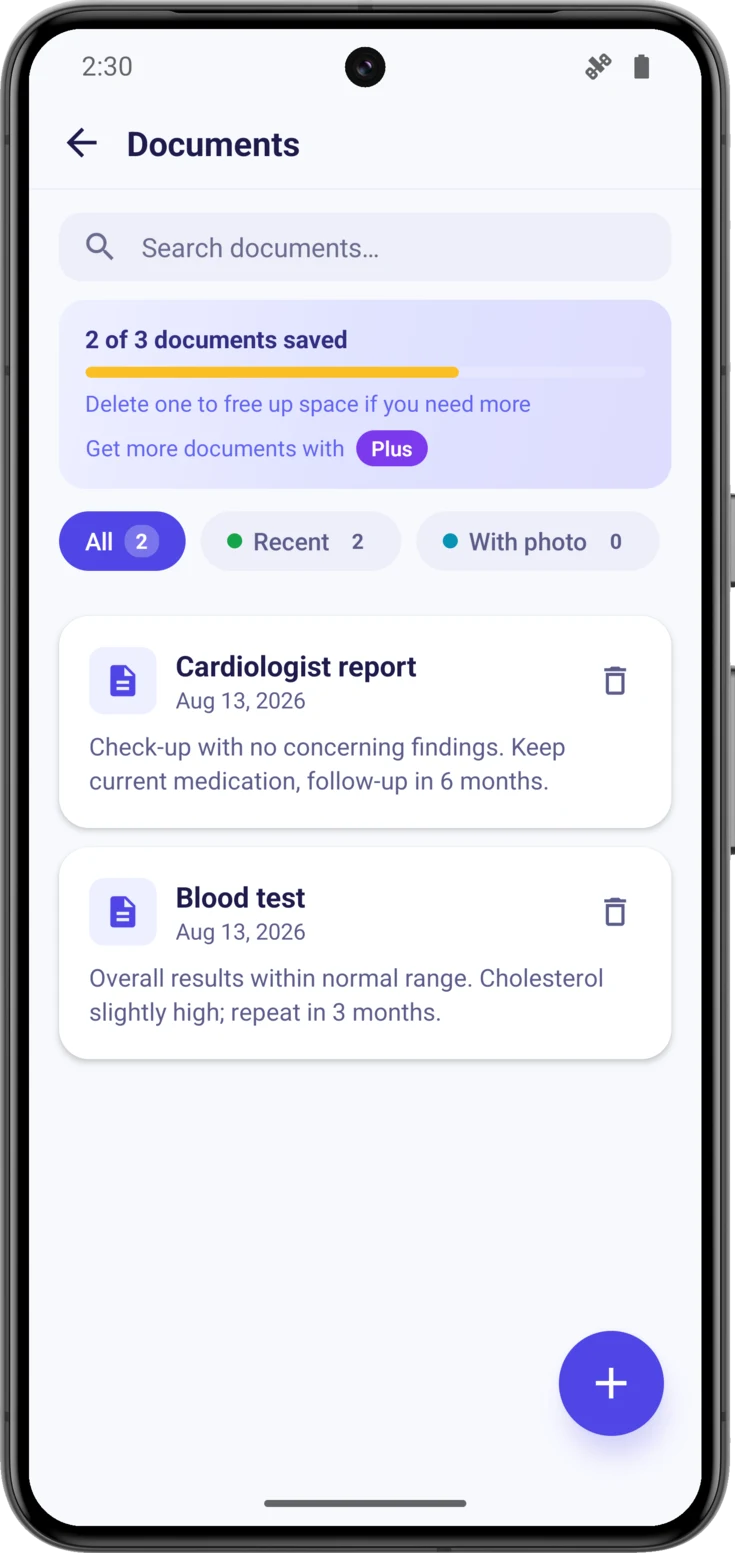
Search and filter
Type a word into the search box —«blood test», the doctor’s name— and the list keeps only what matches. The filters underneath narrow things down in a different way: «Recent» are the ones from the last 30 days, and «With photo» the ones that carry an attached image. The number on each filter tells you how many there are without your having to tap it.
Adding a document
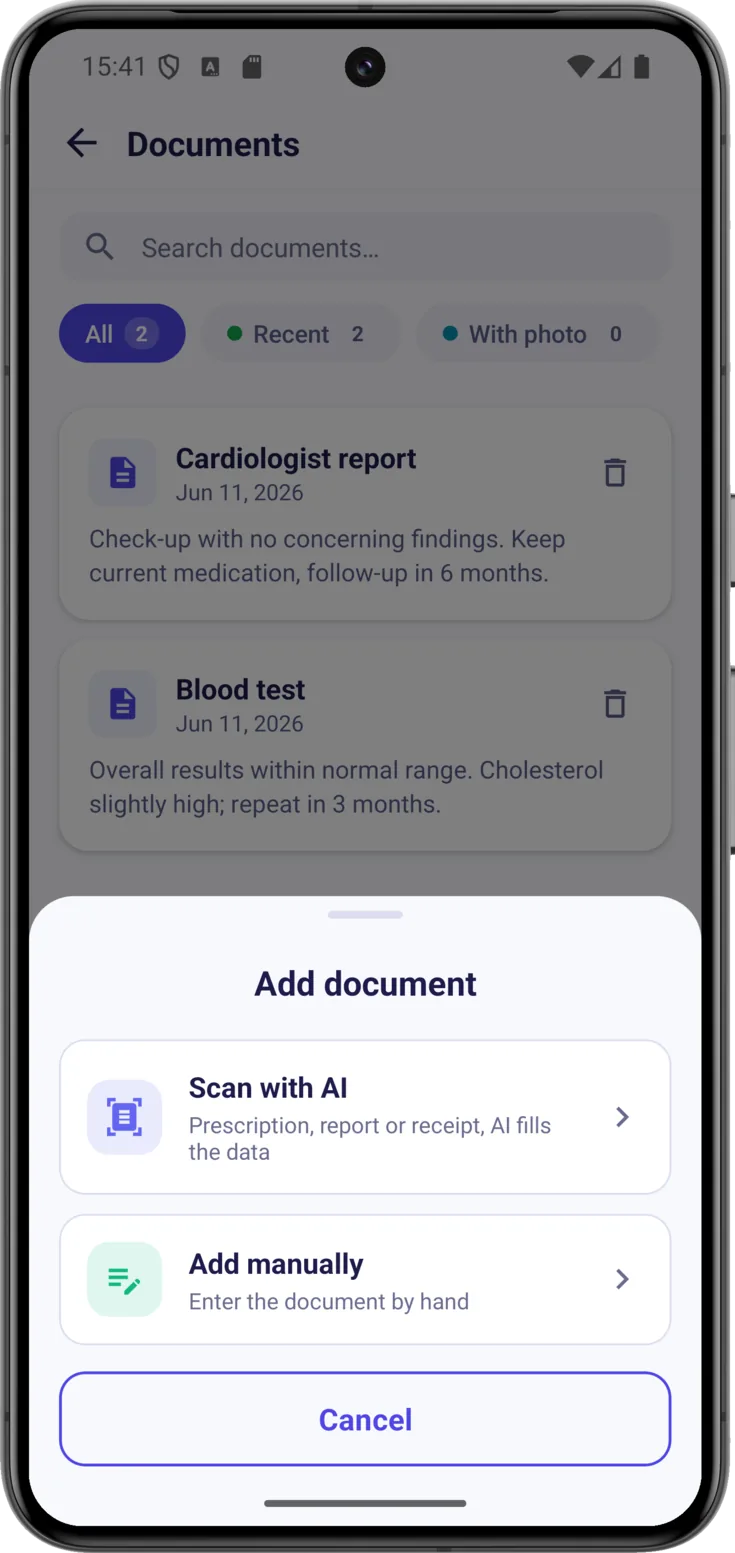
Tap the button at the bottom right and choose how to create it. Both ways store it equally securely.
Scan it with AI
With «Scan with AI» you take a photo of the paper and the app works out what type it is, extracts the text and fills in the title and the date on its own. Before you finish, check what it has understood and save.
Or write it out by hand
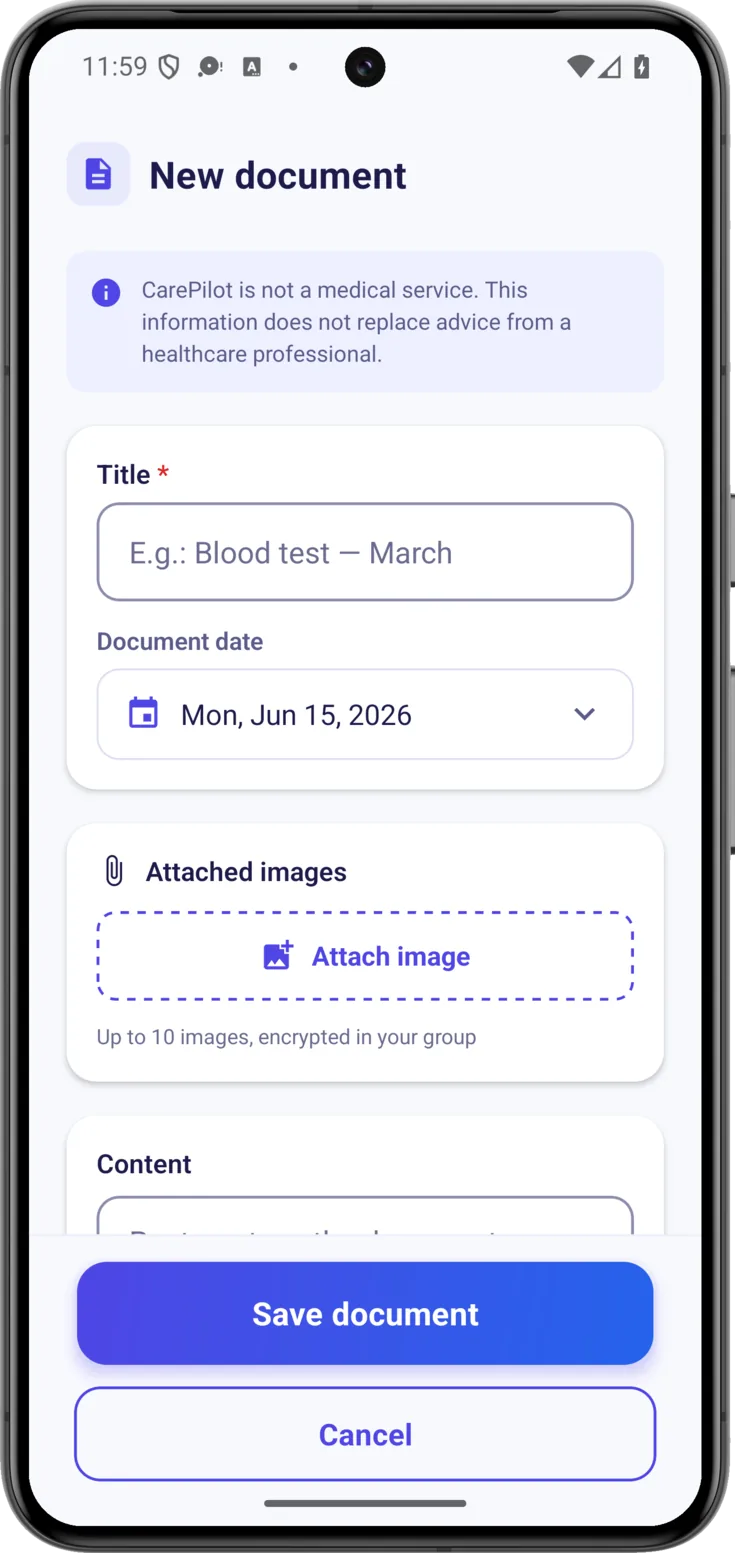
If you do not have the paper in front of you, or it is a note of your own, choose «Add manually» and fill in the «Title» —so that you recognize it later on: «Cardiologist’s prescription»—, the «Document date» and the «Content».
Attach the original image (Plus/Pro)
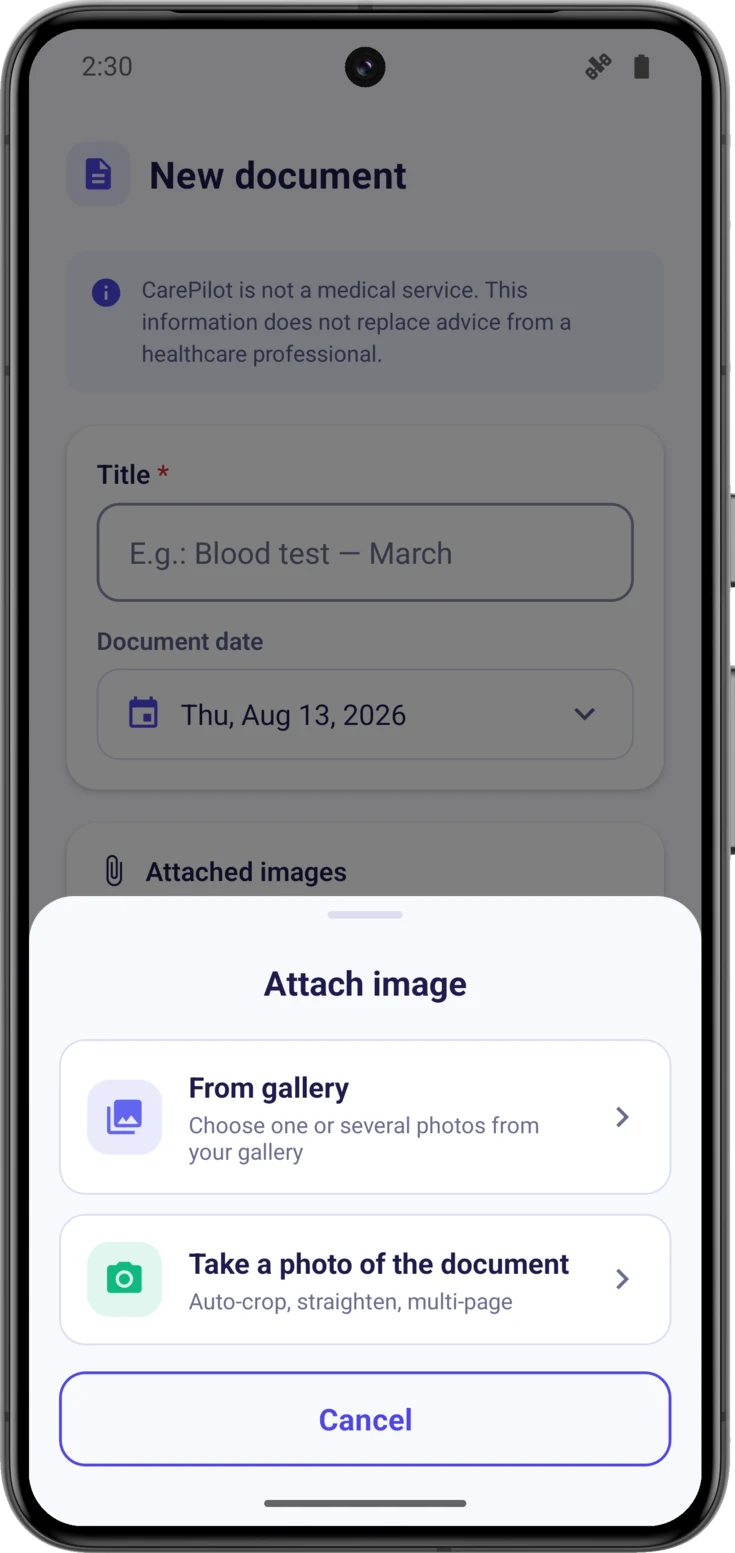
Sometimes you want to keep the photo of the paper just as it is, not only the text. With Plus or Pro, «Attach image» opens a sheet with two options:
- «From gallery» — for when you have already taken the photo or somebody sent it to you over WhatsApp.
- «Take a photo of the document» — this opens the same scanner the app uses to read prescriptions, with edge detection and several pages.
That image is stored encrypted like everything else. Up to 10 fit in each document, in case the report has several sheets.
Viewing, editing or deleting a document
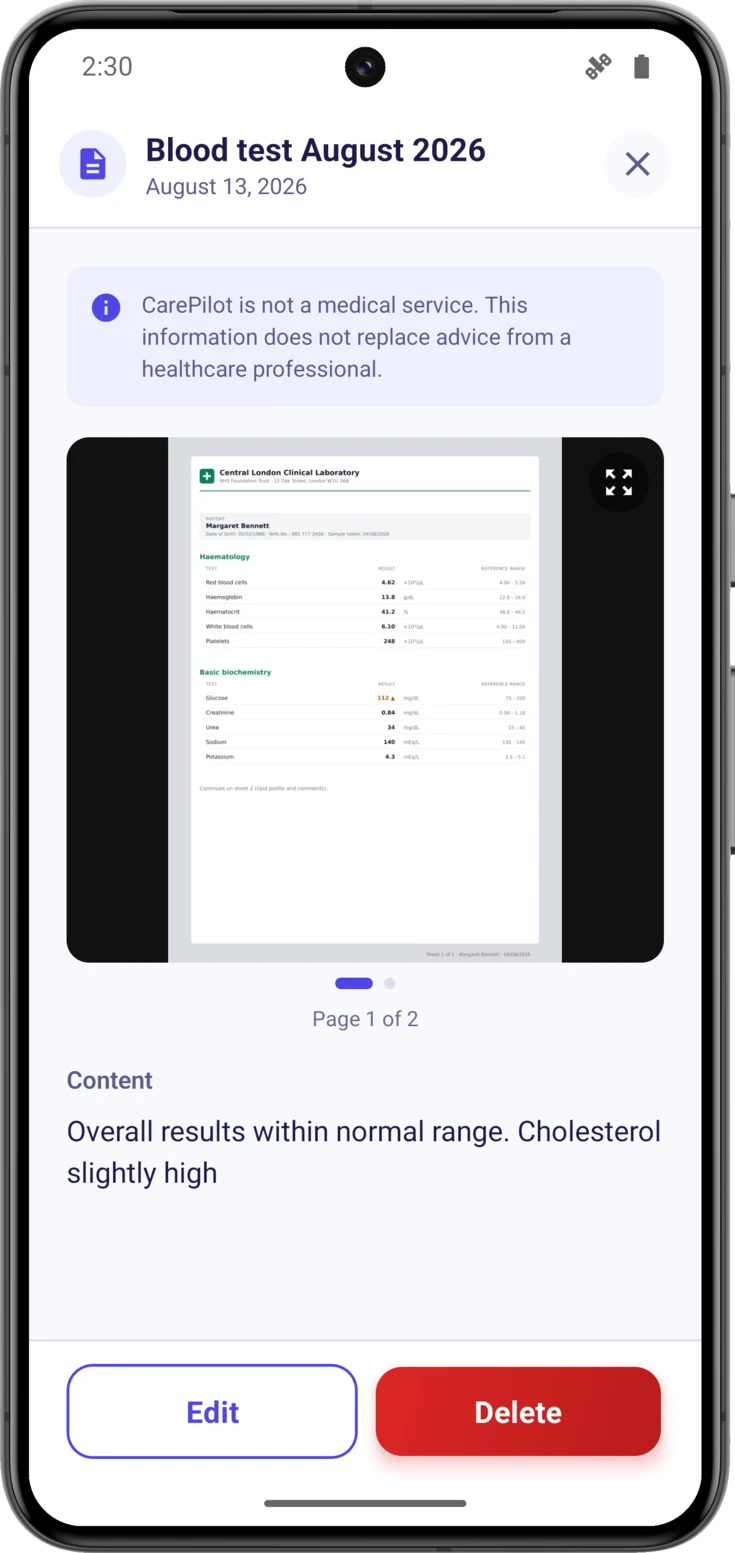
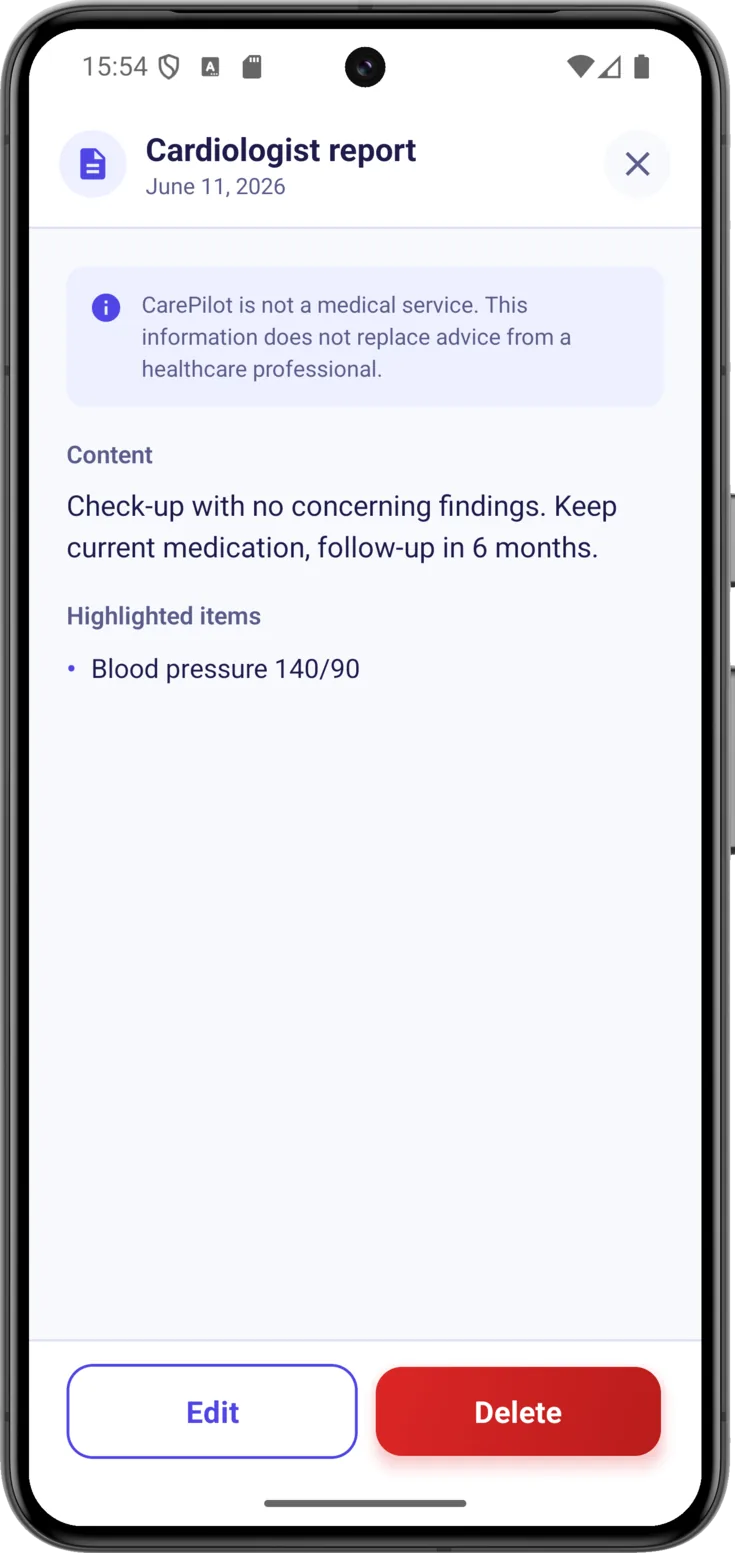
Tap the document in the list and its detail opens: the content, the «Highlighted items» and, if it has any, the attached images.
The «Highlighted items» are dates, values or names that appear literally on the paper. The app sets them apart so that you find them at a glance, but it does not interpret them: it does not say whether a value is good or bad.
If it has several sheets, you turn them with your finger
Slide your finger across the image to go from one sheet to the next. The little dots and the caption «Page 1 of 2» tell you how many there are and which one you are on, so you do not have to remember how many there were.
Open it full screen to read the small print
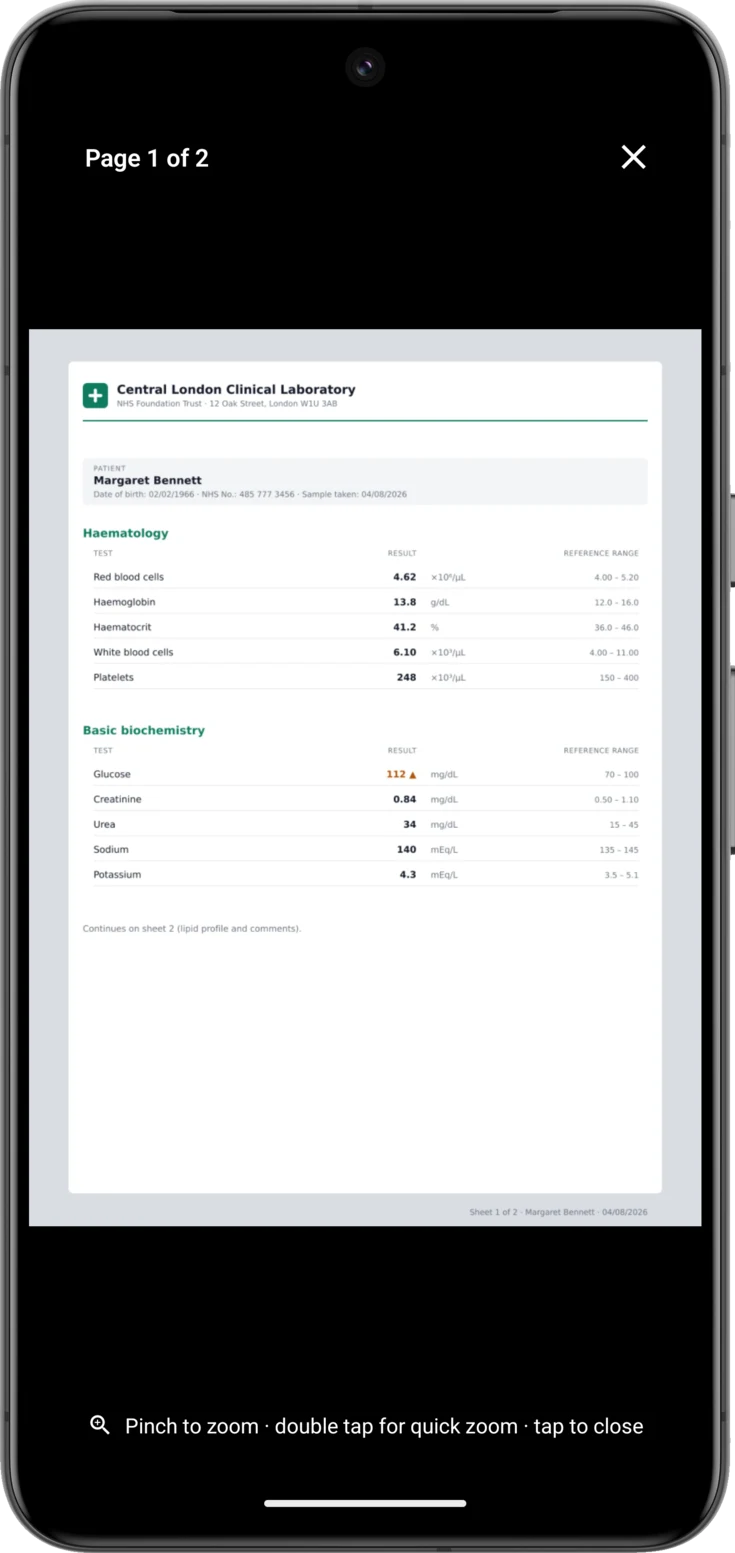
In the detail the image looks small, just enough to recognize it. Tap it —or use the arrows icon in the corner— and it opens full screen, on a black background.
At the bottom you have a reminder of the gestures, and the one that saves the most struggle is the double tap: it zooms in without your having to pinch. To close it, tap the image or the ✕ at the top.
Edit or delete
You do not need to open the document in order to delete it: every card in the list carries its own bin to the right of the title. And inside, at the bottom, are «Edit» and «Delete» .
Before deleting, it asks you to confirm —«Delete document?»—, and with good reason: once it has been deleted it cannot be recovered, neither the text nor the images.
And about access to the images: anyone who stops being a member of a group loses access to its photos straight away, not the next time they open the app. The permission is checked on the server every time an image is opened, so no window is left in which they could still be seen.
Two details about those two buttons. «Edit» is only offered to whoever created the document, so on one that somebody else uploaded it does not appear, even if you have permission to edit. And if the group is in read-only mode or has a announced closure, neither of the two appears, nor the bins in the list, not even for the person who organizes the group.
Encrypted photos and plans
Text documents are stored encrypted always, on the free plan too. What is reserved for Plus and Pro are the attached images, which is what the app’s form calls them.
| Free | Plus | Pro | |
|---|---|---|---|
| Saved documents | 3 | 30 | Unlimited |
| Attached images (encrypted) | — | ✓ | ✓ |